Hi Folks,
Today i have a problem with installing ISA 2006 which was corrupted during Install.
Next Time i ran Setup its gives me an Error " Cannot Install Configuration Managment Server as the Port is in Use by Another Application"
I checked Add/Remove Programs and found the ISASTGCTRL Services was not correctly installed. We cannot Uninstall the Service as there is no link to remove the From Add/Remove.
So, I worked around for a while and found this tool that allows us to remove the file causing HeadAche to me for such a long time.
Look for ADAM Folder in C:\Windows or just type the following Command at the Command Prompt.
"C:\WINDOWS\ADAM\adamuninstall.exe" /i:ISASTGCTRL
This will uninstall the Service.
Also Unistall the Active Directory Service from Add/Remove Programs.
Restart your Computer and WOW next time you run the Setup it all goes Fine.
Have a nice Day.
Cheers,
Himayat Ullah Khan,
MCITP Server Administrator,
MCTS ISA 2006,
CCNA,
Showing posts with label ISA 2006. Show all posts
Showing posts with label ISA 2006. Show all posts
Monday, December 13, 2010


Monday, July 12, 2010
ISA Server 2006 Book (70-351)
ISA Server is a very PowerFull Product by Microsoft as it gives a handful of features at Software Level just like as a Router. You can Allow/Block User Access to Sites just as you are working on Access Lists.
Publish Servers,Sites. Apply NAT/PAT through GUI.This Book contains exellent material as to how use ISA Server 2006 for your Organizational Needs.
ISA Also Provides IPS ( Intrusion Preventation System ) to Organizational level for all kinds of DOS(Deniel of Service) attacks and many others like Flood Attacks etc.
ISA Server can also be used as for BandWidth Monitoring and restricting User to Use a certain volume of Bandwidth with Add-ons like BandWidth Splitter and Much More.
Exam Code for ISA 2006 is 70-351 an upgrade to ISA 2004 (70-350) Paper.
Download Book For ISA 2006
Cheers,
Himayat Ullah Khan,
MCP,MCTS,CCNA.
Publish Servers,Sites. Apply NAT/PAT through GUI.This Book contains exellent material as to how use ISA Server 2006 for your Organizational Needs.
ISA Also Provides IPS ( Intrusion Preventation System ) to Organizational level for all kinds of DOS(Deniel of Service) attacks and many others like Flood Attacks etc.
ISA Server can also be used as for BandWidth Monitoring and restricting User to Use a certain volume of Bandwidth with Add-ons like BandWidth Splitter and Much More.
Exam Code for ISA 2006 is 70-351 an upgrade to ISA 2004 (70-350) Paper.
Download Book For ISA 2006
Cheers,
Himayat Ullah Khan,
MCP,MCTS,CCNA.
Tuesday, June 22, 2010
Step by Step Backup of ISA Firewall Policy
One of the Most Crucial and Worth Taking part is of taking Routine Backups of ISA configuration
Such as he Firewall Policy, System Policy.
In this Step by Step Article I will teach you how to take Backup of Firewall Policy as a whole.You can also Take Individual Backup of a rule also.
Step 1
Open ISA Server Management and navigate to Firewall Policy, At the right most Top click on Tasks Pane.

Step 2
Slide down to “Related Tasks” and click Export Firewall Policy.

Step 3
Click Next , You will see a window which asks you if you want to make this rule password protected, check mark Export Confidential Information if needed and enter the Password. In my case I don’t want to make it password protected so I clicked Next.

Step 4
Browse and give a Path where you want to save the .xml file.

Step 5
Click Next and Finish.

A message window appears confirming that you have successfully exported the configuration.

Verification:
Navigate to the Path and Confirm that there exists a file named “policy.xml”
Note:
You cannot import a rule from ISA Standard Edition to ISA Enterprise Edition and vice versa.
Cheers,
Himayat Ullah Khan.
Thursday, June 17, 2010
Step by Step Configuration to Block a Website
Step by Step Configuration of ISA to Block a Website
In order to Block a Website you first need to create a Block List and then use it in your ISA rule.
This Step by Step Configuration will help you to Solve your Problem.
First Create a Block List (URL Set) :
Open ISA Server Management , Click Firewall Policy , On Right Most Top you will see three Tabs namely Tools,Tasks and Help. Click on Tools Tab and Expand Network Objects
.

Right Click on URL Sets and click New Set, The Following windows opens, give it a name and enter the URL of website that u need to block.

A new URL Set is created, Click Apply to sace the Changes.

Now Click on Task Tab and Create a New Access Rule :

Click Next , then select Deny :

Click Next and Add the Following Protocols :

Click Next and now add the Source to which you need to apply the rule from ( in most cases its internal )

Click Next and Add External to the Destination List.


The rule must be on Top in order to Work Properly because ISA Access rule works the same as Access lists in Router. See the hightlight rule which is on Top named "Blocked Website".

Now we will check this Rule on a Client machine, Open any browser and enter the Website Address i.e www.facebook.com and see what happens.User must get the following message.

Technical Information (for support personnel)
Error Code: 502 Proxy Error. The ISA Server denied the specified Uniform Resource Locator (URL). (12202)
IP Address: 172.16.0.1
Date: 6/17/2010 5:50:17 AM [GMT]
Server: isatest
Source: proxy
Note the Technical Information that tells you that the specified Address is denied by ISA.
Your Rule is now Created and No one can Access the Specifed Website.
Cheers,
Himayat Ullah Khan ( Cisco Certified Network Associate )
In order to Block a Website you first need to create a Block List and then use it in your ISA rule.
This Step by Step Configuration will help you to Solve your Problem.
First Create a Block List (URL Set) :
Open ISA Server Management , Click Firewall Policy , On Right Most Top you will see three Tabs namely Tools,Tasks and Help. Click on Tools Tab and Expand Network Objects
.

Right Click on URL Sets and click New Set, The Following windows opens, give it a name and enter the URL of website that u need to block.

A new URL Set is created, Click Apply to sace the Changes.

Now Click on Task Tab and Create a New Access Rule :

Click Next , then select Deny :

Click Next and Add the Following Protocols :

Click Next and now add the Source to which you need to apply the rule from ( in most cases its internal )

Click Next and Add External to the Destination List.

Click Next and add the users you need to apply this rule for. You can also Add users from you Domain but for that you need ISA to be a Part of that Domain. Click Next and Finish.
Click Apply to Save the Rule .

The rule must be on Top in order to Work Properly because ISA Access rule works the same as Access lists in Router. See the hightlight rule which is on Top named "Blocked Website".

Now we will check this Rule on a Client machine, Open any browser and enter the Website Address i.e www.facebook.com and see what happens.User must get the following message.
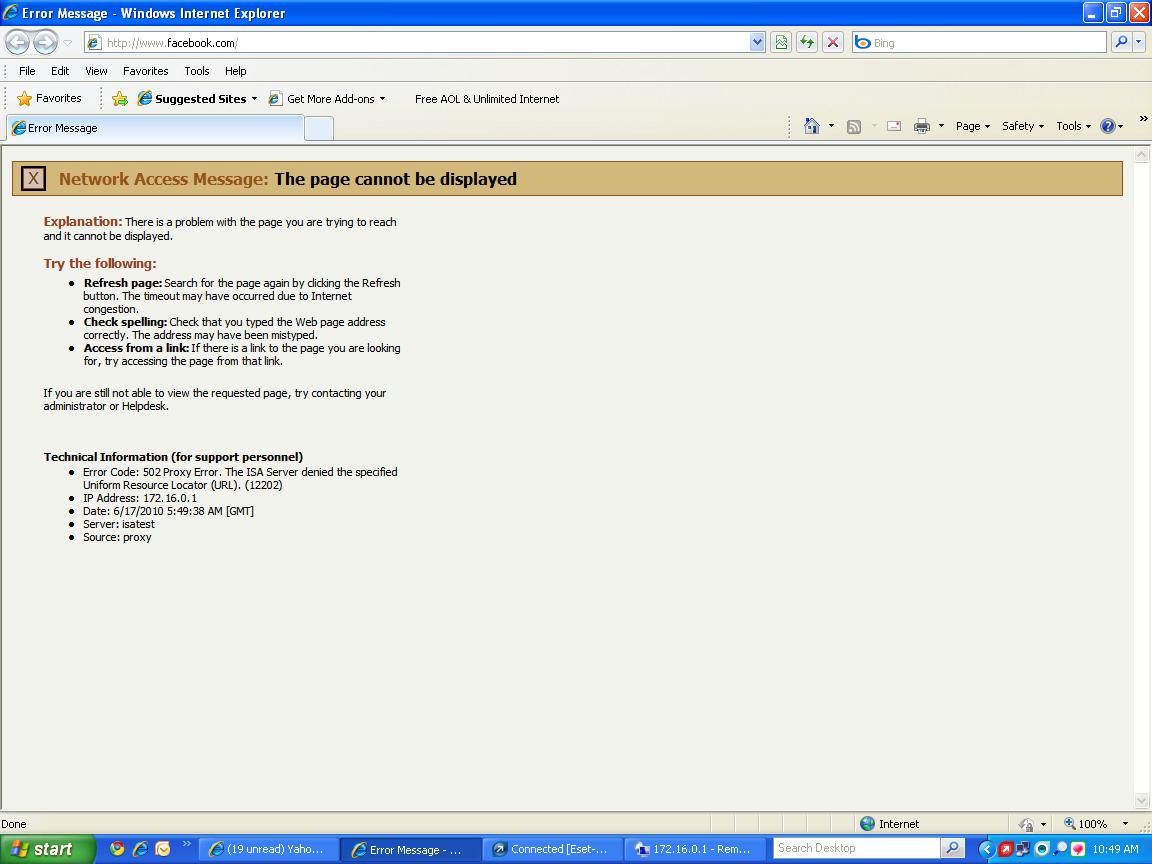
Technical Information (for support personnel)
Error Code: 502 Proxy Error. The ISA Server denied the specified Uniform Resource Locator (URL). (12202)
IP Address: 172.16.0.1
Date: 6/17/2010 5:50:17 AM [GMT]
Server: isatest
Source: proxy
Note the Technical Information that tells you that the specified Address is denied by ISA.
Your Rule is now Created and No one can Access the Specifed Website.
Cheers,
Himayat Ullah Khan ( Cisco Certified Network Associate )
Wednesday, June 16, 2010
Creating an Access Rule in ISA 2006
Hi ,
ISA is a very powerful tool by Microsoft because it gives Administrators the ease of Monitoring,Restricting,Allowing,Alerts,Sessions,Bandwidth utilization,logging and lots more.
It also enables an Admin to allow Multiple Internal Hosts to Access to internat by NAT/PAT at its own. IT Admin dont need to do anything to configure.
Today i will show you how to make an acces rule in ISA 2006.
Its quite simple and it will be a piece of cake for you as i have prepared a snapshot Article for all of you.
Open ISA Server Managment :

Expand Array --> ServerName ( mine is isatest ) --> FireWall Policy ,
Click on Task Pane at the Right Most Top and Click Create Access Rule,
Give the Rule a Name ,

Click Next and Allow the Rule :

Click Next and Add the Protocols shown in SnapShot :

Click Next and Add the Source named Internal ( Internal is used for User inside a netwo , this feature describe the NAT/PAT feature as in Router) :

Click Next and Add Destination to External :

Click Next and Define which users you want to allow this Rule for ( In my case i have allowed all users ). This is the main Feature of this product that allows you to Restrict or allow Users.

Click Next and Finish :

Rule is created as it is highlighted but its not yet been active, You need to Apply in order to use this rule.
Click Apply Shown on Top.

As you Click Apply the Following Window will popup ensuring that u have successfully created the Rule.

Click OK.
Check your Browser and yeah Internet is running :)
Cheers.
Himayat Ullah Khan (Cisco Certified Network Associate)
Subscribe to:
Posts (Atom)